Order Manager Client
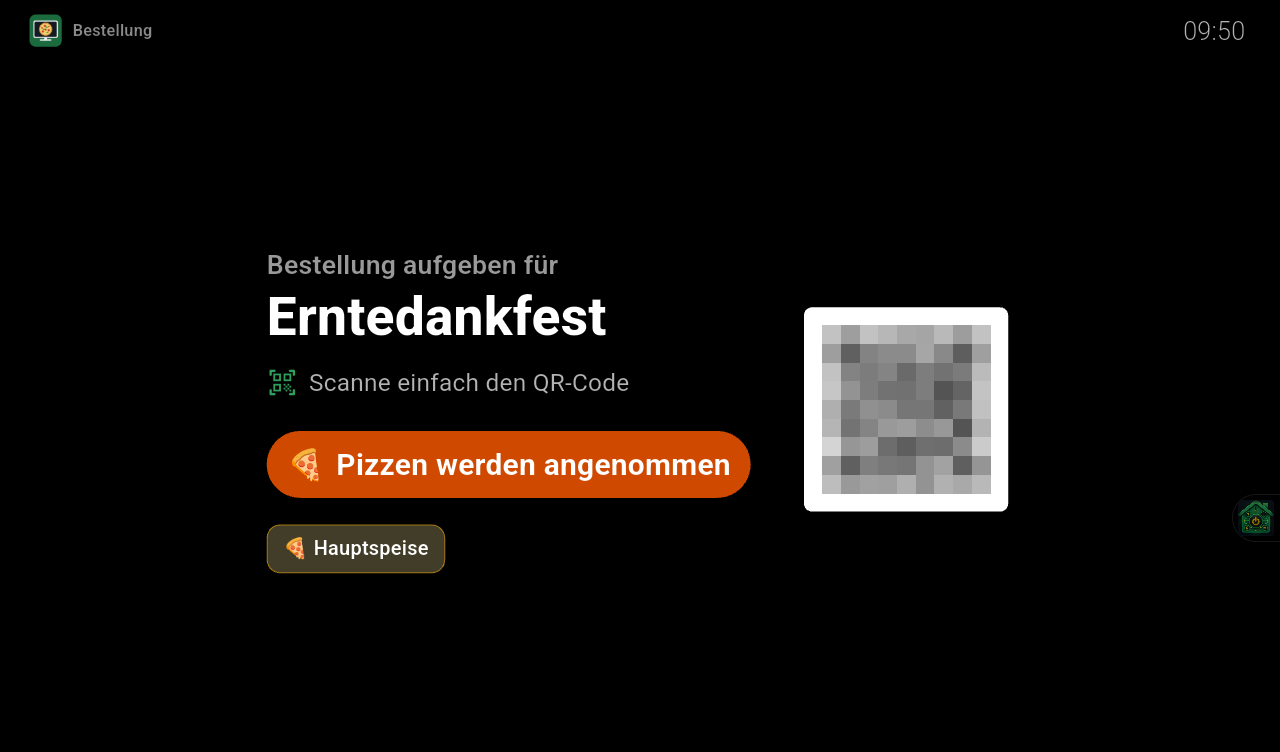
Your TV as an order display: on the order day, the TV box shows the QR code for ordering and what the kitchen is currently accepting. When an order is ready, “Please pick up” appears on top of everything with a chime – any music playing only gets quieter for a moment.
What's it for?
The Order Manager runs on the guests' phones and on the kitchen monitor. But at a party there's usually a TV in the room too – and now it shows everyone how to order, which course is currently up and whose food is ready to pick up. So even if you're not looking at your phone, you won't miss a thing.
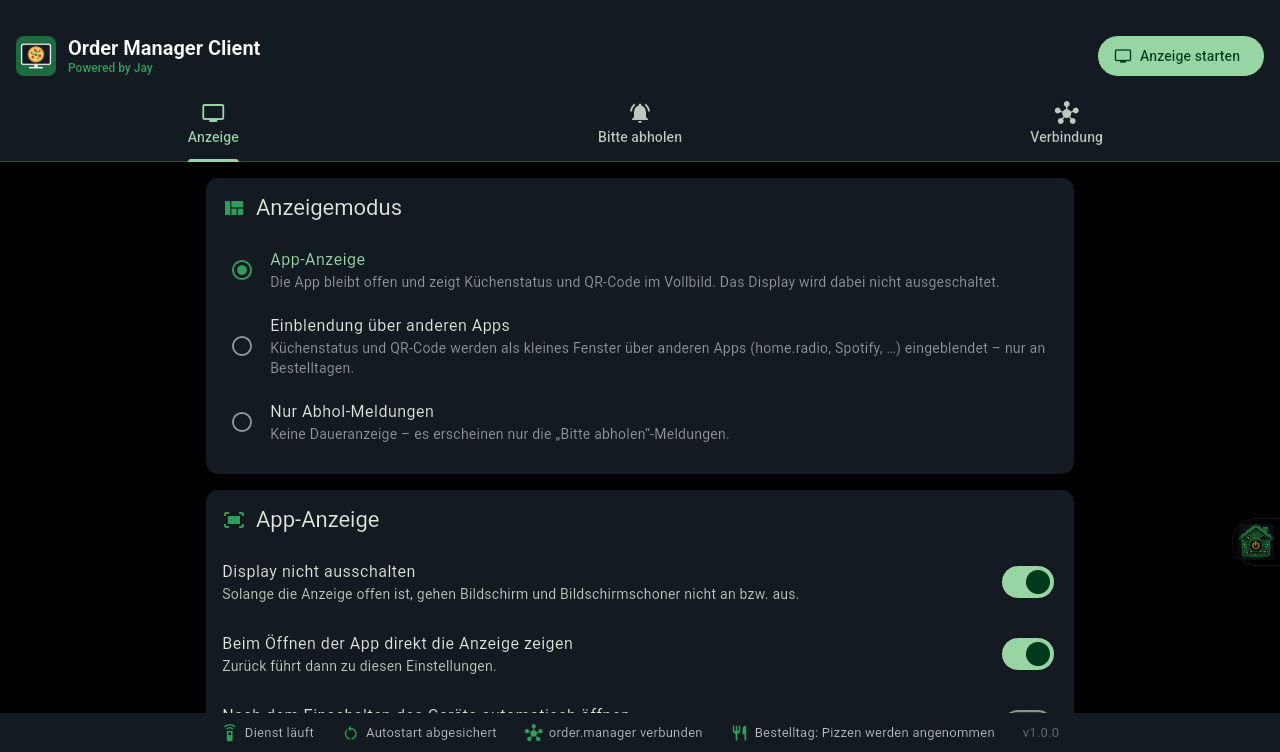
Three display modes
App display
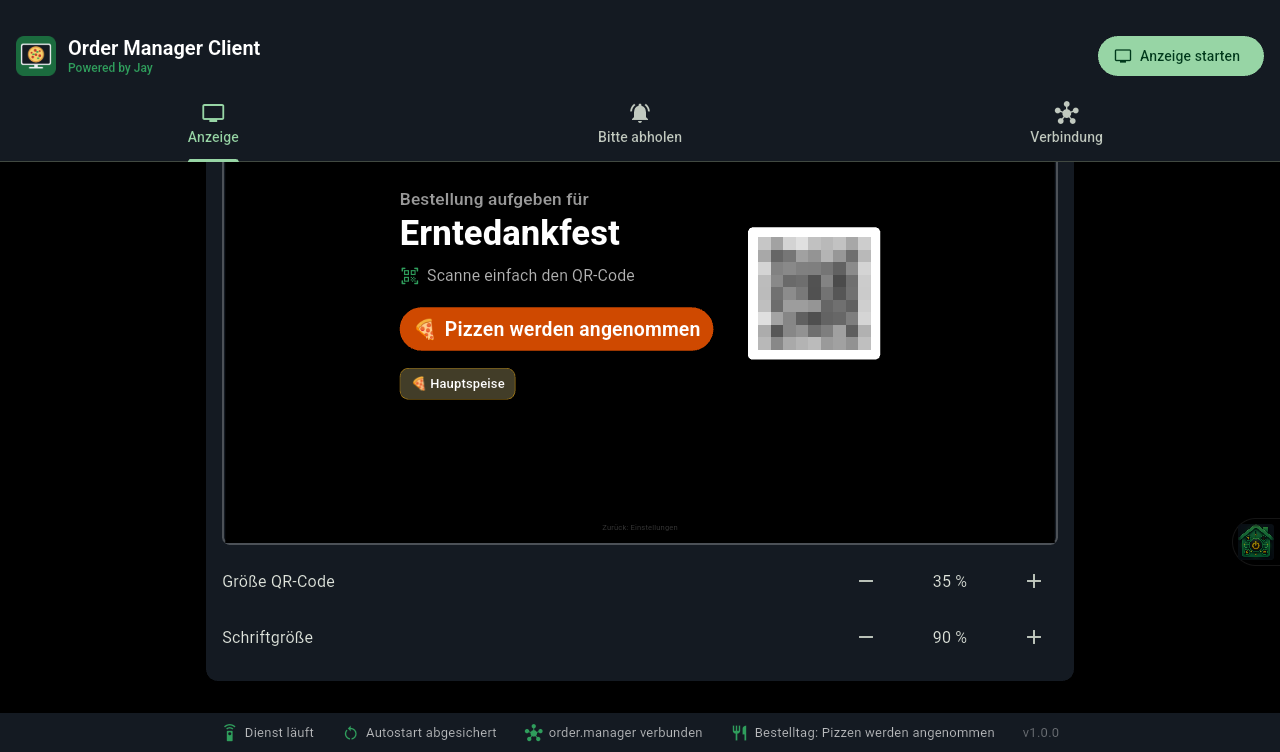
Title, kitchen status, courses and QR code in full screen. The display stays on and the screensaver stays off. Can start right when the TV is switched on.
Overlay on top of other apps
A small window with status and QR code sits on top of radio, Spotify & co. Position, size and opacity are adjustable.
Pick-up alerts only
No permanent display – “Please pick up” only appears when something is ready.
“Please pick up”
Chime with ducking
“Ding! Ding!” at an adjustable volume. Other playback gets quieter for a moment and then continues as normal.
Easy to read
Identical dishes are grouped: “6× 🎃 Pumpkin cream soup: Anna, Ben, Carla, …” – no name gets cut off.
With countdown
Display time 10–300 seconds. OK or Back on the remote closes the alert early.
What it looks like
Setup
- Install the APK on the Android TV box or tablet, e.g. via
adb install. - Enable the background service under Settings → Accessibility → Order Manager Client. It keeps the polling running and shows the alerts on screen – just like Home Control.
- Connect: enter the Order Manager's server address and the host's email and password, then tap “Speichern & testen” (save & test).
- Choose a display mode and test “Please pick up” once – done.
The detailed guide is in the README on GitHub.
Requirements
- Android TV / Google TV or an Android tablet with Android 7 or later.
- A running Order Manager and an approved host account.
- Home Control can run on the same device alongside it.
License
Like the Order Manager, the client is licensed under the PolyForm Noncommercial 1.0.0: free for private and non-commercial use, including clubs, schools and non-profit organizations. Commercial use is not allowed.
The Order Manager Client is a hobby project for your own setup. Because it uses an accessibility service, it isn't available on the Google Play Store.